How Illumify Handles Label Printing
From a drag-and-drop label designer to live data fields, auto-computed values, and barcodes that print directly from your lots: here's how Illumify makes labels a first-class part of operations.
By Stephanie TsangPublished August 12, 2026
Illumify's label module is built into the platform, not bolted on. You design templates in a drag-and-drop canvas, bind fields to live lot data, let formula fields auto-compute things like serving size and THC per serving, and print directly from inventory or goods receipts, no manual data re-entry required.
The label designer
Labels in Illumify start in a purpose-built canvas editor. The interface has three panels: a toolbox on the left for elements, the canvas in the center, and a property panel on the right where you configure the selected element. You work in real label dimensions, DPI and physical size are set up front, so what you see in the editor is what prints.
Elements you can place on a label include text, data-bound text, barcodes, QR codes, lines, shapes, and custom icons. Once placed, each element can be dragged, resized, and fine-tuned with exact position and size controls in the property panel.
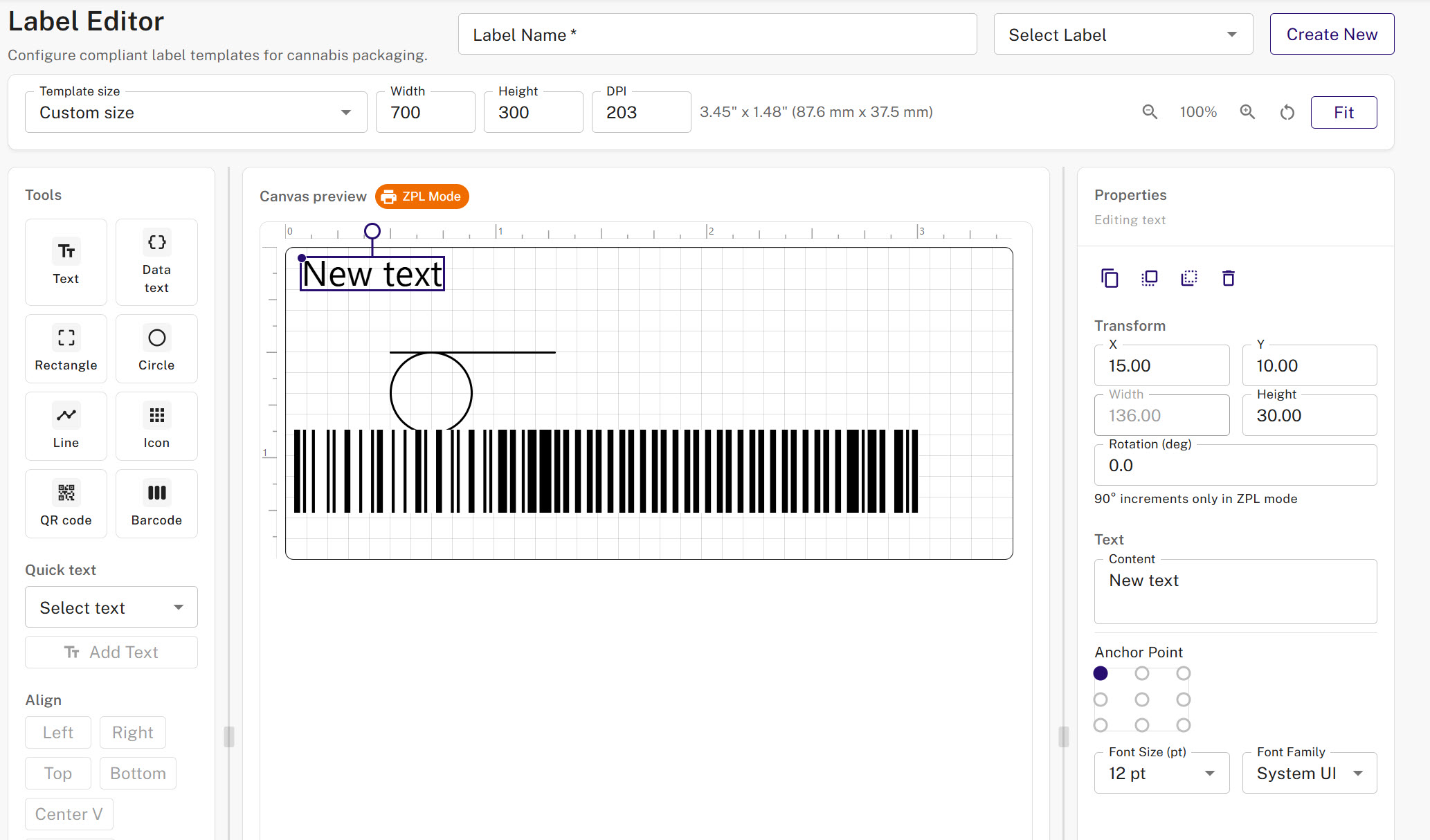
Under the hood, every label is stored as a ZPL template. ZPL (Zebra Programming Language) is the industry-standard language for thermal label printers, which means Illumify works out of the box with Zebra hardware and any compatible thermal printer, no middleware, no separate RIP software.
A single template can be assigned to many products or lots. If your label design changes, you update the template once and every future print reflects the change. No need to touch individual records.
Live data fields
The most time-consuming part of label production at most companies isn't the design, it's getting the right data onto each label without mistakes. Illumify solves this by binding label elements directly to live fields from the lot or package record. When you print, the system merges the current values at print time. No spreadsheet, no copy-paste, no fat-finger errors.
What data can be pulled automatically
Data fields available to label templates include information from the lot, the item, the strain, and the most recent lab test results. Examples include:
When you print a label for a given lot, all of these values come from the actual record in Illumify, no manual entry. If your THC result changes because a re-test came in, the next print reflects that automatically.
Beyond the standard field list, Illumify supports custom fields on labels. Custom fields can be text, numbers, dates, dropdowns, checkboxes, or formula-type computed values, giving you flexibility for industry-specific or company-specific label requirements without code changes.
Calculated fields
Some label values aren't stored directly; they need to be derived. Serving size, THC per serving, milligrams of active ingredient per unit: these are computed from the underlying lot data rather than typed by hand. Illumify supports formula-type fields that do this computation automatically at print time.
Why this matters
When someone has to manually calculate a serving size or cannabinoid content per serving before typing it onto a label, two things happen: it takes time, and mistakes get made. A fat-finger on a compliance field, especially on a regulated product, can mean a recall, a failed audit, or a product that has to be re-labeled before it ships. Formula fields remove both risks.
No manual math
Values like THC per serving or net weight per unit are computed from lot data and inserted at print time; the operator never touches a calculator.
Accuracy on every print
Because the formula runs against live data, the computed value is always consistent with what's in Illumify, no drift between the label and the system of record.
Compliance-ready
Regulated industries often require specific derived values on labels. Formula fields let you encode those requirements into the template once, so they're applied consistently across every lot that uses it.
Example: serving size calculation
Suppose your label needs to show the amount of THC per serving. You have the lot's total THC percentage and the package net weight. Rather than computing (net weight × THC%) / number of servings manually for each lot, you configure that expression once as a formula field in the template. Every subsequent print runs it automatically and inserts the result into the label at the right position.
The same pattern applies to any derived value: total cannabinoids per unit, cost per gram, fill weight ratio, or anything else that can be expressed as a formula over the available lot fields.
Barcodes and QR codes
Illumify's label designer supports both 1D barcodes and 2D QR codes as native elements. You place them on the canvas the same way you would any other element, bind them to a field, and the correct value is encoded at print time.
Barcode formats
Code 128 is the most common barcode format used in Illumify labels for lot tracking and package identification. The system supports both static values (a fixed string hardcoded in the template) and data-bound values (the barcode content comes from a lot field, such as the package tag). For numeric-only data, Code 128 Subset C encoding is available, which produces a more compact barcode that some scanners read faster.
QR codes and retail compliance
QR codes in Illumify can be configured to encode a URL. For cannabis operators, this is commonly used for Metrc Retail ID compliance: the QR code on a retail label encodes the state-specific traceability URL that regulators and consumers can scan to verify the product's chain of custody. For a full walkthrough of how Metrc Retail ID works and what it requires, see our Metrc Retail ID guide.
When a QR code with a compliance URL is printed for the first time, Illumify records the print date against that URL in the system. This creates a traceable record of when each label was produced, useful for audits and for identifying labels printed before a product update.
Quick Text
Not everything on a label needs to come from a data field. Static text, ingredient lists, warning statements, brand copy, regulatory boilerplate, lives on the label as fixed content that doesn't change between lots. In Illumify, these are placed as plain text elements in the designer.
Quick Text is the mechanism for adding short, reusable text blocks to a label without opening the full designer. This is useful for operators who need to add a compliance statement, a facility name, or a short disclaimer to a label that's otherwise template-driven. The text is set once per template and appears on every label generated from it, no editing the label at print time.
Combined with data fields and formula fields, Quick Text gives you the full label composition: some things are always the same (static text and Quick Text), some things vary by lot (data fields), and some things are computed from lot values (formula fields). The template holds all three, and the print job assembles them into a final label for each individual lot.
Printing from anywhere in the platform
Labels in Illumify aren't only accessible from a dedicated label screen. Print actions are embedded throughout the platform so that operators can print a label from the context where they're already working.
Print from your lots list
From the Lots or Packages screen, you can select one or more lots and trigger a label print directly. The system resolves which template to use, loads the current data for each selected lot, and generates a ZPL file that is sent to the connected printer. Multi-lot selections produce one label per lot in a single print job.
Print from goods receipts
When materials arrive and are received into inventory, Illumify can print labels for the newly created lots as part of the receiving workflow. Rather than navigating to a separate label screen after the receipt is posted, the print action is available directly from the goods receipt, reducing the steps between receiving a shipment and getting labels on it.
Template assignment
Each print action references a label template. The template is the definition of what the label looks like and which fields it uses. Assigning templates to product categories or item types means that when an operator prints from a lot, the right label layout loads automatically, no need to select a template manually each time.
The number of copies to print is set by the operator at print time on the frontend. The backend generates one label per lot; the printer receives copy count instructions separately and handles the duplication. This keeps the backend simple and lets operators adjust copy counts without changing the template.
See label printing in action
Illumify's label module is part of the core platform, no add-on, no third-party integration. If you want to see how it works with your products and workflows, book a demo.
Request a Demo